Play online games and Win Amazon Gift Cards

Posted by Golden Dragon In | 3 comments»
I have been registered in an online game site some time ago. Though I was not a frequent player, I used to play on that site time to time as there was many interesting games on it. Few days back I could redeem a $6.5 Amazon coupon code from them free of charge.

The free online game site where I redeemed the coupon code is KadoKado. KadoKado is one of the most popular online game site which has millions of registered players around the world.

Paid to Play Games
In KadoKado, there are about 75 games which were developed by Motion-Twin. They are divided into two main sections called "Puzzle Games" and "Action Games". Everyday you will receive 4 Green Gems. For each Green Gem you can play a game and accumulate the points called "Kado Points". The Kado Points are the coins in Kado Community where you can redeem for the prizes, Amazon coupons etc.

The Kado Points can be earned by many ways. The easiest way to earn points is by fulfilling contracts on each game. For each game you will have a random amount of Kado points. Then you can earn by winning stars in on each game. Then you can earn points by reaching levels as well. On the other hand you can join to a clan and play together to earn clan points at the end of two weeks period.

There are eight levels in each game. At the end of the each period the best players will go to the next level. So that you will always be matched against the same skill level players. Once you reach 30,000 points you can redeem a $6.5 Amazon coupon instant. You can also redeem $20 Coupon for 80,000 points and $65 Coupon code for 250,000 points.

You can also start playing games at KadoKado. the site link is below.

http://www.kadokado.com

Once you get the code from KadoKado, you can redeem the code at Amazon and it can be used to buy anything at Amazon. Normally it it valid for about 6 months. The below is a screen shot of one of the codes I got.

KadoKado Amazon Gift Card

If you are a game lover, try this. It's really a fun. Have a nice time with KadoKado.

Activate Google Multiple Login in same Browser

Posted by Golden Dragon In | 0 comments»
Normally we all have few email accounts maintained rather than using a single email account. It seems to be useless to someone, but in fact it is more effective to maintain few email accounts just to get rid from spam and bulky emails.

But sometimes you might have disappointed when it comes to log into two or more Gmail accounts. If you need to log into two or more Gmails, you need either to use two separate browsers or log out from one and log into the other.

But most of us are still not aware that Google has introduced multiple account sign in feature. With this now you can log into multiple accounts at the same browser. So that hereafter you don't want to worry about changing browsers to log into two different Gmail accounts at the same time.

Let's see how you can activate this option on your Google Account.

First you need to log into one of your Gmail accounts. Make sure you tick "Stay signed in" checkbox when you sign in.

Then go to the below URL.
https://accounts.google.com/optintoaccountchooser

Then add the desired accounts to your Google account with relevant passwords.

The below image shows a browser which is used to log in with two different Gmail accounts.


If you are using a shared computer or a public computer, this method is not recommended.

Rotating Social Icons and Email Subscribe Widget

Posted by Golden Dragon In | 2 comments»
Any good blog designer would know that if he add a  follow widget to his blog, the site traffic may increase due to the subscriptions. It has a potential to retain the interested visitors and boost the site revisit conversion ratio.

Recently I have seen that many bloggers have added social bookmarking icons to their blogs. But most of their added widgets are not looking good on their blogs and some of them are really untidy as well. So I have thought of designing a widget where you can add subscriptions for your main social bookmarking sites and by email.

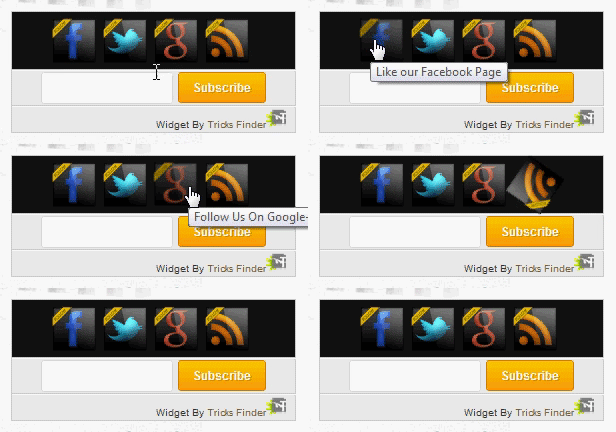
Rotating Social Icon and Email Subscribe Widget
The most interesting part here is the bookmarking buttons are rotating when you take your mouse pointer over the image. The rotating hover effect is designed for the Facebook, Google plus, Twitter, and RSS feed icons. Below the icons, I added an email subscription widget where your visitors can subscribe for email updates. This is solely designed in a way where you can copy and paste in a html/javascript widget. No need to do any xml modifications. All you have to do is replacing the coloured text according to your details.


The below image is the final outcome when you added the widget to your blog.


Lets add the widget now. Follow the following steps.

Step 1 : Go to Blogger dashboard's layout and select "Add a Gadget"

Step 2 : Add a HTML/Javascript. Then copy and paste the below code.

<!--begin of Tricks Finder social widget-->
    <center>
    <div class="TF-Rotating-Bar" style="background: #111111;border: 1px solid #CCC;border-top: 1px solid #CCC;padding: 5px 8px 1px 3px;text-align: center;border-image: initial;font-size:10px;font-family: "arial","helvetica",sans-serif;"><div id="social">
    <!--Start Facebook Icon-->
    <a title="Like our Facebook Page" href="http://www.facebook.com/tricksfinder" target="_blank"><img border="0" src="https://blogger.googleusercontent.com/img/b/R29vZ2xl/AVvXsEg-rxwCUTUcpJdjeWB18VAClXWnn_RcxrIwokw7stuj-oXp7NtTOHxgNxu0VU5_HFh-a3kGclh1GchECd2bVVugvz-6yA0riy8jeyOIK72SoI6aYBSblfhlxvfKcN2nfJMc9ipatDeJ1BQ/s1600/facebook-icon.png" style="margin-right:1px;" alt="Icon"/></a>
    <!--End Facebook Icon-->
    <!--Start Twitter Icon-->
    <a rel="nofollow" title="Follow Our Updates On Twitter" href="https://twitter.com/tricksfinder" target="_blank"><img border="0" src="https://blogger.googleusercontent.com/img/b/R29vZ2xl/AVvXsEh0DG8B_A0FMPAXhzjPiP6XH3k0WEsI4Z1sX2LbFufQZQSX5tlSilSmXe8KD1XpuyFfqA7I5wiS2Lfl8kwM-T7YFNaVItSRS3FG3G11VfP8Z3xNNRXVcjUJbIZe5cIUJLrT08bHzAh3SIE/s1600/twitter-icon.png" style="margin-right:1px;" alt="Icon"/></a>
    <!--End Twitter Icon-->
    <!--Start Google+ Icon-->
    <a title="Follow Us On Google+" rel="nofollow" href="https://plus.google.com/114669905250225341128/" target="_blank"><img style="margin-right:1px;" src="https://blogger.googleusercontent.com/img/b/R29vZ2xl/AVvXsEjj9AcovU5vDcUBX-Ewsitp-vhkctfLpot0PaEb-ZrYE30gdbm4sYOyYh980DqiwatyFNpIa_d8_lsr43qMmVli54ZlULQq9lh3TAxQRBQT3wrGPCoQhfRa_vSS09tOuObUkSVv9tad_68/s1600/google-icon.png"/></a>
    <!--End Google+ Icon-->
    <!--Start RSS Icon-->
    <a rel="nofollow" title="Grab Our Rss Feed" href="http://www.tricksfinder.com/feeds/posts/default?alt=rss" target="_blank"><img border="0" src="https://blogger.googleusercontent.com/img/b/R29vZ2xl/AVvXsEjf8FHYCrNquL1MCLtsLsSpRjIYlmcg_ACKNff960STY93bqba4_UrcAO5JGS18geOqClpogT2x88VMraYWKhi2OzqcS_I_Ub550P7mzZJCvPhVsPjFvRgt3hyphenhyphen8cPFPhSs2x76Dzauv__o/s1600/rss-icon.png" style="margin-right:1px;" alt="Icon"/></a>
    <!--End RSS Icon-->
    </div></div>
    <!-- Email Subscribe -->
    <div id="email-news-subscribe" style="background: #EBEBEB;border: 1px solid #CCC;border-top: 1px solid white;padding: 1px 2px 1px 2px;font-size:10px;font-family: "arial","helvetica",sans-serif;">
    <div class="email-box">
    <form action="http://feedburner.google.com/fb/a/mailverify" method="post" target="popupwindow" onsubmit="window.open('http://feedburner.google.com/fb/a/mailverify?uri=tricksfinder/vsuv', 'popupwindow', 'scrollbars=yes,width=550,height=520');return true">  
            <input class="email" type="text" style="width: 110px; font-size: 12px;" id="email" name="email" value="Enter Your Email.." onfocus="if(this.value==this.defaultValue)this.value=&#39;&#39;;" onblur="if(this.value==&#39;&#39;)this.value=this.defaultValue;" />      
            <input type="hidden" value="tricksfinder/vsuv" name="uri" />
            <input type="hidden" name="loc" value="en_US" />
            <input class="subscribe" name="commit" type="submit" value="Subscribe" />  
        </form>
     </div></div>
     </center>
<div id="TricksFinder"><script src='http://rotate-bar.googlecode.com/files/rotatebuttons.js' type='text/javascript'/>
</script></div>
<!--end of Tricks Finder social widget-->

Step 3 : Replace the above Red urls of the social bookmarking sites with your links. Replace the above Purple text with your feedburner ID. It is usually the last part of the feedburner URL. For an example
http://feeds.feedburner.com/tricksfinder/VSuv

In order to make the widget fully visible, your widget section where you put the code needs to be have at least a size of 250px. Otherwise you will have to remove one of the bookmarking icon. That can be easily done by deleting the whole section between
<!--Start XXXXX Icon-->
<!--End XXXXX Icon-->

That's is. Now you will have a nice rotating subscription box.

Password Protected SMS (Text Encryptor & Decryptor)

Posted by Golden Dragon In | 0 comments»
In modern  telecommunication era, text message sending (SMS) is the the most popular method among teenagers. Low cost, ease of use and lack of complexity may be the reasons for that. Most of us have the ability to type a message within few seconds on phone without even looking the keypad.

It is true that SMS are so popular and widely used, but we cannot ensure security of the messages we receive and send. Anyone can read all your messages if they get your phone.

Have you ever thought that what if there's a method where you can secure your received messages to your mobile phone. For the first time in the world you will be able to secure your text messages in your mobile phone with a highest privacy and safety. This is still in experiment mode. This technology has been discovered by three youngster school boys who are from a South Asian country, Sri Lanka. The new technology is named as TED.

Text (SMS) Encryptor and Decryptor
TED, “Text Encryptor & Decryptor” mobile application will allow you to secure your text messages in your phone. You will experience the best privacy control for your messages from this application. Yet, this application, TED can be used only in java enabled (compatible) phones. But the drawback here is that to gain benefit from this, both sender and receiver should install TED to their mobile phones. You will receive a user account and password when TED is installed for the first time on your mobile. When you will receive a SMS then the same SMS will also receive to TED account. So owner should need to login to the Ted account to read & view the received messages.

The messages you received to your mobile phones are completely limited to you. Only you can read the messages. If unknown tries to read the messages, it is useless as he won’t be able to read it because the messages would display an encrypted form of text such as secret codes.

Those who use TED will receive this wonderful and amazing security and privacy for his mobile phone. The all compliments should go to the three students who created this valuable application named  Roshnal, Adeesha and Chamath.The below is the official website for this application.

http://www.tedmobile.net/

The above application has been developed for the contest Think Quest 2012 organized by Oracle Education Foundation.

Gone PR3 with Yesterday's Google PageRank update

Posted by Golden Dragon In | 0 comments»
As bloggers, many of us target our blogs to compete with others and come up to the first place in Google. I'm not that much good on search engine optimization (SEO) for the tricky articles which I publish. On the other hand I don't have enough time to do bit of SEO for my articles and blog as I am busy with my office work.

Today I got to know that there a rumor saying Google has updated it's pagerank (PR) again. Few weeks ago, may be probably a month ago, I checked my Pagerank after I purchased the domain tricksfinder.com from GoDaddy. It was nothing significant other than a PR0. So I checked my PR just to see whether the rumor is true.

How I got Google PR3 within few months
Whoa...! I couldn't believe my eyes. What I saw was really astonishing. It was PR3 before my domain. I wonder how I achieved such a rank within few months. I just checked my rank with some of my friends those who are really working towards a better SEO rank. But what I observed was that most of their blogs has been demoted in terms of Google PR. According to my recent experience, what I feel is that Google seems to track intentional site promotions other than black hat methods.

So I thought of sharing my experiences on this PR update. I think it would be useful for those who have sites with decreased PR. The below are few tricks I use when I do blogging.

Method 1 : It is stated by many SEO specialists that after the Google Panda update, the PR algorithm has been changed and more weight has been allocated to social network shares. Normally bloggers share their content only to Facebook and Twitter. But I prefer other sharing networks than these primary sites. I used to submit my content especially to Digg and Stumbleupon. But once I got a huge traffic from Reddit as well. I'm not familiar enough with Reddit as it seems to bit complex to me. But may be that huge traffic from Reddit has come from a submission by loyal user at Reddit who visits my blog.

Method 2 : Do submit to other DoFollow social bookmarking sites like Tagza, Supfella, Fundolink. These sites allows you to submit your content and get votes for the submissions. So that you will get some additional traffic as well from those sites if they come up in the top stories of the day. Try to add social sharing buttons widget at the bottom of your blog posts. It will increase the social media impact of the readers of your blog.

Method 3 : Earlier when I put images onto blog posts, I used to do a relevant Google Image search and put an image from the search results. Now I do design a custom image and upload it into the blog post. Once you upload an image, make sure you place alt tags as well. The 'alt' tags will tell what your image is about.

Method 4 : It's better if you can always add a custom permalink to your blog posts. If you add keywords to the custom permalink, then it will increase your search engine visibility.

Method 5 : Add few subscription methods like Facebook fan pages, twitter and G+ follows, Email Subscriptions, RSS feeds etc. Once you post a new post, update those as well. So your subscribers will know that you have updated.

Those are the things I normally do when I post something. Try above few things and see whether it will work for you as well.

How to redirect Godaddy without www domain to with www

Posted by Golden Dragon In | 3 comments»
Do you have a domain purchased from Godaddy? Normally what you do is just connect your website or blog to the domain and continue. But have you ever checked whether your website works without www? If not just try it now. Most probably if you are not aware of that fact, your site without domain would not work.

Normally search engines identify the domain with www and the domain without www as two different domains. Hence it is needed to make sure you redirect without www domain to the domain with www. As I explained in the post how to add GoDaddy domain to your Blogspot Blog, there's a option in blogger to automatically redirect to www.

Redirect Godaddy without www to with www
Why it is so important?

If your domain without www is not redirected to www, then you will lose a considerable traffic to your site. Lets say your domain is popular. Then they will type your site name on the address bar and hit enter. There's a high possibility that they may not type www.

If that happens, he/she may not come to your site. They will see some advertising links of your domain seller and browse away. So you need to forward your domain now.

Let's see how this is done in Godaddy through Domain Name Forwarding.

Step 1 : First log into your GoDaddy Account.

Step 2 : In the Domains Panel, Click Launch.

Step 3 : Select the domain name you want to forward, Click Forward, then select Forward Domain (As in the below picture)

Godaddy domain forward to www

Step 4 : In the popup select http:// or https:// depending on your server settings. In normal cases it is http://. In the Forward to field, enter the URL you want to forward your domain name to. Here add the full domain including www. (As in the below picture)

Godaddy Domain Forwarding wizard

Step 5 : Select Update my DNS setting to support this change. So that your DNS settings will automatically update for the forwarding. Now click OK.

Now your domain is ready. It will take some time (usually around half an hour) to update the changes. Once the changes are updated, your domain without www will successfully redirect to the domain with www.

Are you a Victim of a FB Pornographic Photo Tag?

Posted by Golden Dragon In | 0 comments»
Recently one of my friends had a big problem with his facebook account. He is basically not an IT guy. Joined Facebook few years ago and has added few friends all over the world without personally knowing them. He usually surfs internet and checks for updates on facebook on regular basis at the workplace.

One day when he logs into his facebook account at the workplace his wall was full of pornographic images. The girl next to him has already seen these and she has initially misunderstood him as he's watching porn on his office computer. Unfortunately he was unaware of how to remove the facebook photo tags.

Avoid unwanted facebook photo tags
Improving your facebook account's security is the only thing you have to do to get rid from these bad experiences.

Even though there are many security features offered by facebook, most of us are unaware of these facilities. Let's see how we can improve your facebook account's security.

If you can follow the following few methods, you won't probably be worried about your facebook account's security.

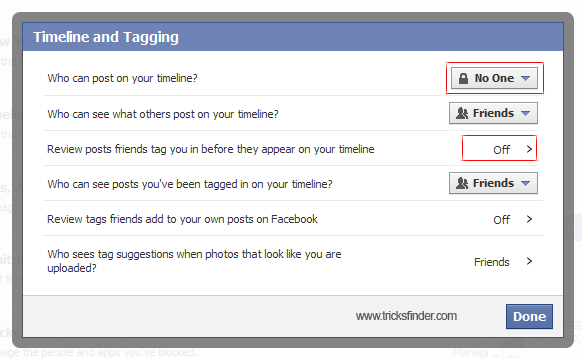
First you need to go to Privacy Settings. Then select Edit Settings on the section Timeline and Tagging.

facebook timeline and tagging

Then you will get a box with the properties as shown in the image below. This is where you need to alter for a better privacy. It's better to change "who can post in your timeline" into no one.

facebook tagging properties
The option to review the friend's post would be set as off on default. So you need to set it On. Then you will get a pop up. You need to make it "Enabled" if it is "Disabled" by default. That's all what you need to stop tagging into posts. If anyone tagged you, you will get an instant notification saying you have been tagged by someone. Then you will have the option to approve the tag or decline the tag.

Further, you can follow few guidelines below in order to protect your facebook account as well. May be you have thousands of friends in Facebook. More friends means you are sociable, but on the other hand that means you are more insecure on your privacy.

Tip 1 : Always look at the address bar before logging into facebook. If you are surfing internet in a cyber cafe, this is a must. Look the address bar twice and make sure that the address is https://www.facebook.com, because there may be phishing sites which looks exactly like facebook.

Tip 2 : Avoid logging into facebook as much as possible from public computers. 

Tip 3 : If you got a friend request by a profile with a half naked female picture, surely it is a fake male account. So be careful when adding them as friends and chatting with them. If your facebook account already has such friends then remove them and report. Otherwise block those accounts.

Tip 4 : Avoid clicking any link which you don’t know. Those links will probably direct you to problematic content. Don't authorize your account for unwanted facebook applications.

Tip 5 : Never give your facebook account password to anyone. Be sure to sign out before you leave the computer.
If you can simply follow the above tips, then you can avoid yourself getting in to more troubles.

Add a custom Permalink to your Blogspot Blog

Posted by Tricks Guru In | 1 comments»
Recently I have experienced that blogger is changing its mechanism and the interface more rapidly. As I feel the main reason behind these changes is to retain the existing blogger users and to compete with wordpress. Most newbie bloggers use blogspot because it is really easy to handle. But when the blogger users gaining the expertise and needing more resources and flexibility, they shift to wordpress.

Hence blogger is adjusting themselves to provide the main features which the existing users are demanding. Now blogger provides many options to the blogger users specially to increase the search engine optimization of the blogger blogs where the early blogger users were complaining of. From those options, one is the introduction of custom permalink to the blogger blog posts.

add a custom permalink to blogspot blog
Permalink is the permanent link address of the web page, shown by the words/text which is in the relevant url. In wordpress you can add any keyword to the permalink, which increases the SEO position of the page. Earlier blogger didn't allow users to change the url as their wish. But now they do.

This can't be done in the normal blogger interface. If you log in to normal blogger interface, you won't be able to see such an option. So you have to go to the below url.

http://draft.blogger.com

Once you logged in and click on a New Post, you will see the option of permalink. Once you click on it you will see automatic and custom options. In custom url option type your desired permalink.

Don't use spaces between words. Instead use the hyphen "-" for the spaces. You are done.

Note : If you are worried about SEO power of the url, try to target a keyword and add the keyword on the permalink. Then your post will be more worthy to the search engines because that's what most of the people would look for.

This method can be used to manipulate the keywords as well. But make sure that you won't add as much as keywords to the permalink. Try this method on your blogspot blog and feel the difference of the outcome of this new option by Blogger.

Google introduces the future Glasses working with your perceptions

Posted by Tricks Guru In | 0 comments»
Google Corporation is now moving towards to create futuristic technical tools apart from its general internet service providing. There are two popular tools such as a vehicle which drive without a driver and a pair of spectacles which operates using artificial intelligence.

On 4th of April, the Google Corporation had launched details regarding this glasses/spectacles with a video which displaying how to operate it.

Google Glasses working with your perception
Outer appearance of this spectacles looks like a fashionable one with a rectangular glasses with a micro camera by the side. If you wear it as a normal pair of spectacles, then you can look through that rectangular glass. It displays a big screen which displays the outer environment as a background with lots of icons.


This screen just looks like a touch screen. But it is operated using eye movements. According to the video published by Google, when look upper right corner of the screen it will display a note of the day’s meetings. Then displays the options in detail. If you want to know about day’s evening whether forecast, all you have to do is looking that relevant icon or place on the screen. Then it will display whether report. Also when you receive a message from your friend it will display as a popup on the screen. To reply it you have to do is just read the reply looking at the microphone icon. Then it will type the reply message and send automatically to the recipient.

You can capture a photograph of anyplace or thing when you go outside with wearing this Google spectacle. Then you can share that photograph online through Google Plus.


These spectacles were designed and created by Google X laboratory which is a modern technical lab. This project was named as “Project Glass”.

The Project Glass researchers are argument that there is a need for getting help from others for further develop these spectacles. So the Google corporation will warmly welcome others ideas and opinions.

How to find your Blog's Feed Address and Importance of the Blog Feed

Posted by Tricks Guru In | 0 comments»
In this post I’m intending to give you a simple, but important knowledgeable facts regarding feeds. Also this post will help you to understand how the blog syndication works with feeds.

Let’s assume you are reading many web sites such as news websites which frequently update their content. Normally you have to go these websites directly and need to look for any updates time to time. Just think about the mess you are going to face when you are reading such kind of 20 websites daily. Also it consumes much time and data when you are visiting each and every website time to time to know about updates.

How to find the feed of a blog and why it is importatnt
So the solution for the above problem is web feeds. When publishing a new content, the feed can be customized to show it's feed either completely or half or with or without images. Anyone can subscribe to a web feed. That means they can instruct their computer programs (Eg: Firefox, Akregator, FeedReader) or web programs (Eg: Google Reader) to read and store updated content in relevant websites within specific time duration. So the user can see updated web contents at once through that program.

There are many advantages in feeds. As mentioned before the users can read new updated contents without visiting the each website. Also it will inform users when the new content published and it allows users to select posts according to their interest by providing summarized feed. The most important thing is that it will protect user’s privacy. Most websites are asking your email address to send newsletters. So there’s a high possibility to receive spam emails to your email address. When you need to unsubscribe from that websites it will ask you to follow specific course of action. But there’s no such kind of hassle when you subscribe a website through web feeds. You can give up reading the feed any time when you want.

Why computer programs cannot read updated web contents without attaching a web feed? Majority of you will have this problem on your minds. The different websites have different contents from different format. There’s no specific standard for web contents so that computer programs are facing difficulties when reading those. That’s why you need web feeds. Web feeds are made according to the international standards. Web feeds have same format in every website. Therefore one program can able to read all feeds. That means feeds are a specific standard of posts which allow to display updated web contents in different web sites in the world.

It's strongly recommended you to have a web feed in your website if your website updates frequently.

Up to above point we are talking about the web feed. Have you ever thought of the meaning of the popular word called RSS? RSS is also a one kind of web feed. There’s another kind of web feed called Atom. The above two kind of web feeds have bit technical differences and will be done same kind of activities. So here I’m not going to explain it in detail. The reason for the popularity of RSS is because that it’s the older one and mostly used one in websites. The main Blog service providers such as WordPress and Blogger will provide both RSS and Atom to their blogs. But in WordPress, main feed is Atom and in the Blogger it RSS.

How to find feed address in your Blog

If your want to get RSS feed in WordPress then add "/feed/" after the end of blog url.

Eg: http://example.wordpress.com/feed/

If you want to get Atom feed in a WordPress then add "/feed/atom/" after the end of blog url.

Eg: http://example.wordpress.com/feed/atom/

If you want to get Atom feed in a Blogger then add "/feeds/post/default/" after the end of blog url.

Eg: http://example.blogspot.com/feeds/post/default/

If your want to get RSS feed in Blogger then add "/feeds/posts/default?alt=rss" after the end of blog url.

Eg: http://example.blogspot.com/feeds/posts/default?alt=rss

Now it’s not a problem to find a feed address in your blog.

If you want to find feed address in other websites, if that websites provide web feeds then look for RSS logo or look for link such as “RSS” “Feed” “XML” “Subscribe to Feeds”.